
PDF to Excel Converter
Extract tables and data from PDFs to Excel format
Selected file: No file selected
File size: –
Status: Ready for conversion
Processing PDF…
Progress: 0%
Conversion Complete!
Your Excel file is ready to download
In today’s fast-paced digital work environments, being able to shift static files into flexible spreadsheets can really transform how you handle things. When you dive into linkrify PDF to Excel, you’re basically unlocking a smarter way to make your data easier to work with, tweak, and turn into something useful. In this detailed walkthrough, we’ll cover what “linkrify PDF to Excel” truly involves, why it’s such a big deal, tips for choosing the best tool, smart habits to follow, common mistakes to dodge, and a look at what other options are out there so you can compare.
By the time you’re done reading, you’ll see how these linkrify PDF to Excel methods can cut down on wasted time, minimize slip-ups, and boost your ability to gain real insights.
Understanding What “Linkrify PDF to Excel” Actually Means
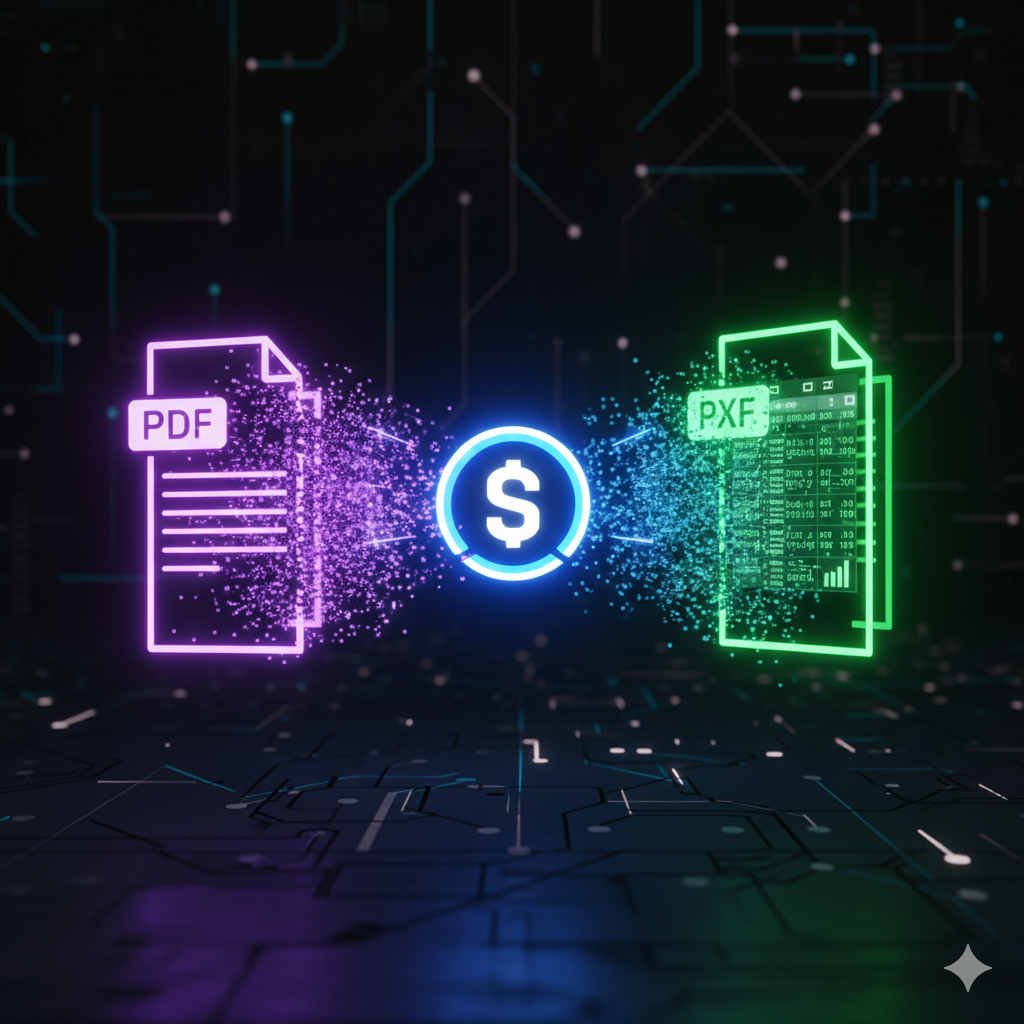
At heart, linkrify PDF to Excel means taking a PDF—maybe a report, bill, financial summary, or any file with organized tables—and turning it into a spreadsheet you can edit in Excel. But it’s not just a straight swap: it includes handling links, keeping tabs on how it’s used, refining the results, and making sure the final sheet is ready for analysis or ongoing processes. When you linkrify PDF to Excel, you’re connecting the dots between locked-down, unchanging info in a PDF and lively, workable data in a spreadsheet.
There are plenty of upsides. Instead of typing everything over by hand or cutting and pasting from messy tables, linkrifying makes it smooth, quick, and something you can do again without hassle. It also lets you add layers like monitoring or routines around the links—so you’re not only changing the file, but also tracking how it’s handled, updated, or passed around. For lots of groups, this cuts errors, speeds things up, and makes the whole thing more reliable.
Why Linkrify PDF to Excel Matters in Modern Workflows
In a time when data rules everything, getting it in a structured, easy-to-use form changes the game. Think about situations like these:
- A finance crew gets monthly updates as PDFs from suppliers. Without linkrify PDF to Excel, somebody has to pull out the details by hand, which invites errors and slows everything. With these methods, those PDFs turn straight into ready-to-use workbook entries.
- A marketing expert has to break down survey results from consumers that come in as PDFs. Linkrifying PDF to Excel makes those findings sortable, filterable, and ready to chart right away.
- An ops team follows performance metrics in PDF reports. Linkrify PDF to Excel flips those static docs into active sheets that play nice with stuff like Power Query or Google Sheets.
Going beyond simple changes, linkrify PDF to Excel brings real perks like:
- Precision: It holds onto table layouts, titles, rows, and columns better when done right.
- Quickness: Auto features can slash the time from getting the file to having data-ready sheets.
- Adaptability: In Excel, you can add more, pivot, visualize, and share easily.
- Monitoring: Link setups let you watch clicks, changes, or how data moves downstream.
- Growth potential: For tons of PDFs coming in regularly (like monthly summaries), linkrify PDF to Excel is a must.
Essentially: doing a one-time switch is fine, but linkrifying for constant use is way smarter.
How to Choose the Right Tool for Linkrify PDF to Excel
Figuring out the best option for linkrify PDF to Excel hinges on a few key things. Here’s a smart way to weigh your choices:
1. How well it converts and spots tables Go for tools that manage real PDFs (with built-in text) and scanned or image ones. A solid linkrify PDF to Excel system will keep rows, columns, combined cells, headers, and even layered tables intact. For instance, something like PDF2XL shines in holding onto tables.
2. How fast it is and if it handles batches If you’re dealing with a bunch of PDFs often, your linkrify PDF to Excel pick needs to allow group processing, auto runs, or watching folders so you’re not doing one at a time.
3. Options for formats and outputs The Excel results should be tidy (.xlsx or .xls) and work with other tools down the line. Some linkrify options let you map rows and columns your way. Take Able2Extract, which allows defining structures before switching.
4. Hooks to other stuff and workflow help Does the linkrify PDF to Excel tool connect to cloud storage, data dumps, APIs, or your analysis setup? If tracking links matters, look for built-in management or data ties.
5. Safety and rule-following With possibly private info involved, make sure the linkrify PDF to Excel platform has encryption, safe up/down loads, data wipe rules, and business-level compliance if needed.
6. Price versus what you get Options range a lot—some free for spot use, others pricey for big batches or text recognition. Think about how many conversions, PDF complexity (scanned vs digital), and the payoff from your linkrify PDF to Excel routine.
7. Help and fresh updates Decent providers keep tweaking their systems (especially for text recognition and table spotting), offer help, and adjust to new file types.
By checking potential tools against these, you’ll land on one that really lets you linkrify PDF to Excel without worries.
In-Depth Look: Competitor Offerings for Converting PDF to Excel
To get a feel for what “linkrify PDF to Excel” might mean for you, it’s helpful to check out existing options with solid conversion skills. Here are close-ups on a few tools that stand out.
Adobe Acrobat Pro DC Adobe’s setup is usually the gold standard for switches. It lets you export PDF to Excel straight up, with top-notch text recognition for image stuff. The real power is in its dependability—since Adobe created PDFs, the conversion is tough to beat. On the flip side, for linkrify routines (like tracking links or scaling conversions), it might need extra layers to automate fully.
Cogniview PDF2XL Cogniview’s PDF2XL is made just for pulling tables from PDFs into Excel. It deals with scanned ones through text recognition, big batches (up to 1000 pages a minute, they say), and auto features. As a linkrify PDF to Excel choice, it excels in keeping formats and handling volume—great for businesses churning through structured reports.
Cisdem PDF Converter OCR For folks on Mac or Windows with tricky or blended PDFs (images mixed with text), Cisdem stands out for precision and simplicity. If you’re aiming to linkrify PDF to Excel for varied files, Cisdem sets a good bar for cross-platform reliability.
ILovePDF / Soda PDF These online tools do PDF to Excel with okay formatting and text recognition support. ILovePDF, for one, manages groups and works on mobile. They’re perfect for quick jobs but might skip full auto or link monitoring you’d want in a complete linkrify PDF to Excel routine.
Looking at these rivals helps set your sights on conversion quality, auto options, connections, and costs when setting up linkrify PDF to Excel for yourself.
Building a Linkrify PDF to Excel Workflow: From Setup Through Execution

Let’s go through a hands-on routine you can use to make linkrify PDF to Excel work well.
Step 1: Pin down your starting files Begin by noting which PDFs you’re switching. Monthly updates? Bills? Scanned papers? Digital mixes? Knowing their setup (tables, titles, image vs text) helps prep better.
Step 2: Pick your tool and tweak settings Choose your linkrify PDF to Excel option. Set things like output type (.xlsx), sheet names, folder watches (in/out), and advanced table spotting (header spotting, merged cells, row/column splits). For scanned, turn on text recognition.
Step 3: Make a folder or link trigger To really linkrify, set an auto start: when a PDF hits folder X or comes via email, the tool grabs it, switches to Excel, and puts the result in folder Y. Meanwhile, it could make a short or tracked link for the new workbook and send it to the right people.
Step 4: After-switch handling Post-switch, the Excel might need a quick tidy—check headers match, merged cells act right, blanks gone. Since linkrify PDF to Excel assumes repeat use, note and auto these where you can (like Excel scripts, Power Query changes).
Step 5: Pass around, monitor, and check use In linkrify style, the switched Excel isn’t just saved—it’s shared through a link or panel. You could watch how often folks open it, who tweaks it, or how many grabs. Using tracked links lets you gauge uptake and payoff.
Step 6: Refine and improve Look at switch precision, mistake rates (off rows, lost info), speed, and how it’s used later. Fine-tune your linkrify PDF to Excel by adjusting rules, changing input spots, or bettering table spotting. Eventually, you’ll cut hand work and get steadier switches.
Best Practices to Maximize Success When You Linkrify PDF to Excel
To squeeze the most from your linkrify PDF to Excel routine, keep these tips in mind:
- Make inputs consistent where you can. Steadier PDF layouts mean better switch results.
- Stick to digital over scanned PDFs, or ensure strong text recognition in your tool. Switches from images are tougher.
- Set clear guides for how PDF tables turn into Excel sheets: which table to which sheet, header handling, blank row treatment.
- Use standard names for output books so people find them fast and tracked links stay steady.
- Keep sharing secure: For switched sheets, use controlled links, access rules, and monitoring to prevent loose sensitive info.
- Handle versions and backups: Keep old Excel in storage to avoid overwrites and track history.
- Watch mistake levels: Note how often outputs need fixes and dig into why (bad table setup, scan quality, odd formats) to improve sources.
- Guide users: Make sure folks using the Excel know the ropes—filtering, pivoting, updating. If you linkrify PDF to Excel but no one touches the sheet, it’s wasted.
- Check regularly: See that link sharing hasn’t broken, tracked links work, and switch paths hold as files change.
Weaving these into your routine maximizes linkrify PDF to Excel perks—less by hand, fewer goofs, quicker understanding.
Common Pitfalls and How to Avoid Them When Converting PDF to Excel
Even with a solid linkrify PDF to Excel routine, you might hit snags. Spotting them early helps skip them.
Pitfall: Weak table spotting Lots of PDFs have fancy tables—combined cells, layered headers, blanks or notes inside. Some switches mess alignments, put stuff wrong, or mix cells. Fix: Pick a switcher with strong table sensing and maybe hand rules for tough ones.
Pitfall: Scanned or blended PDFs Text recognition always risks more mistakes. For scanned, make sure your linkrify PDF to Excel tool does it well and plan hand checks on results.
Pitfall: Dropped styles or cell kinds Numbers might turn text, dates get wrong, merged split bad. This needs after-clean. Dodge by testing with sample files and tweaking settings.
Pitfall: Broken links or access If linkrify PDF to Excel shares via link, ensure it stays good, folks have right access, and spot doesn’t shift. Bad link means no entry and lost faith.
Pitfall: Too much by hand after Treating linkrify PDF to Excel as one-time misses auto perks. Ensure setup is auto, template, monitored so no constant meddling.
Pitfall: Skipping user input The Excel might seem okay but hard to use. Chat with users—do they get sheet names, filter easy, get data timely? Tweak from what they say.
Planning for these keeps your linkrify PDF to Excel on track for success.
Use Cases That Showcase the Power of Linkrify PDF to Excel
Here are everyday examples where switching and link-handling PDF to Excel has created real value.
Auto financial reports A business gets supplier bills in table PDFs monthly. Instead of hand-pulling, they set linkrify PDF to Excel to switch on arrival, drop into shared spot, make link for finance to grab the combined book. Result: Quicker closes, less typing, better audit trails.
Pulling marketing push data Marketing gets PDF reports from ad spots with stats like views, clicks, turns. Linkrify PDF to Excel turns them into sheets with ready pivots. Tracking added, they see opens and views per campaign sheet.
Tracking ops and shipping Warehouse gets PDF logs for shipments or stock. Linkrifying PDF to Excel makes daily logs into live trackers, shares links with bosses, auto-updates panels from switched logs.
Audit and rule-following routines In strict fields, compliance reports come as PDFs. Linkrify PDF to Excel hooks data into watch panels, alerts, analysis, and link-sharing ensures right version access.
In every case, switching is just part—the linkrify PDF to Excel builds from file in → switch → sheet → share/track → breakdown. That full path boosts output.
How to Measure ROI from Linkrify PDF to Excel
If setting up linkrify PDF to Excel, gauge the return. Here are main measures and ways to check impact:
- Hours saved per switch: Note old hand-pull time vs now auto. Times how often.
- Mistake cuts: Count old data slips and guess fix cost/time now gone.
- Faster understanding: Stakeholders get data quicker, decisions sooner? Turn to output gain.
- Link opens: How many times file viewed, downloaded, changed. More means better uptake.
- File volume handled: PDFs through linkrify justifies tool cost.
- Tool price vs hand work: Weigh yearly fees/use of linkrify PDF to Excel vs people cost (hours * pay) for manual.
- Later wins: Maybe better predicts or faster ops from early Excel. Hard to pin, but link extra business value.
With a panel for these, show linkrify PDF to Excel isn’t extra—it’s edge.
What the Future Holds: Advanced Linkrify PDF to Excel Trends
As switch tools smarten and routines get fancier, watch trends shaping linkrify PDF to Excel.
AI and better text recognition Coming switchers will use learning models for sharper table spotting, context, merged, mixed. Means less hand fixes.
Direct data flows Beyond Excel, linkrify will push straight to databases, business intel, analysis spots. Excel might stay for looks but be one stop in flow.
Live links and versions Sharing switched sheet, want links updating on new PDFs (monthly). Track analytics show not just downloads but changes, formula tweaks, use stats.
Team-focused sharing With remote work, linkrify PDF to Excel will add group features—shared links for multi-view/ note on switched sheet, comment, feed to work platforms.
Stronger data rules As privacy/compliance tightens, linkrify will log accesses, trace PDF to book, keep policies.
Staying on these ensures your linkrify PDF to Excel stays ready and matches business needs.
FAQ – Linkrify PDF to Excel

Final Thoughts
In data routines, flipping PDF to Excel isn’t just handy—it’s must for ops. And when you linkrify PDF to Excel, you turn that flip into full routine: intake, switch, share, track, breakdown. Picking right tool, building repeatable, embedding measures unlocks output, precision, insight.
For financials, ops logs, marketing data, compliance—linkrify PDF to Excel gives teams timely, usable sheets over static. Rivals like Adobe, Cogniview, Cisdem, ILovePDF have strong features—but zero in on auto, tracking, integration for standout.
Make linkrify PDF to Excel strategic in data setup. Work future needs not just data, but quick access, workable forms. With right thinking, tools—you’re set.